
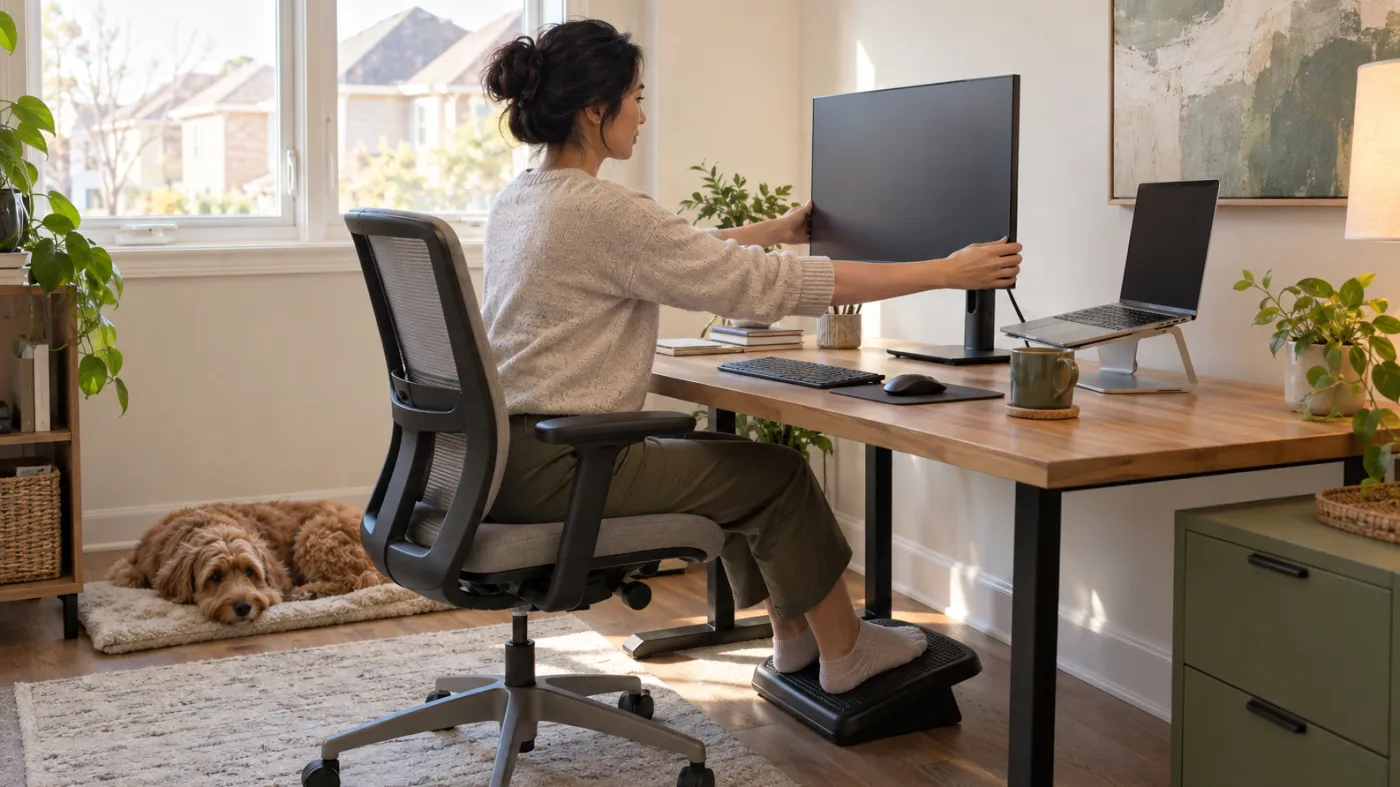
Working from home removes the commute, but it also removes many small transitions that used to break up the day. The walk from the parking lot, trip to a meeting room and change of setting at lunch can disappear. A laptop opens at the kitchen table, the first call starts and several hours pass in one position.
Discomfort in the neck, shoulders, back, wrists or hips does not necessarily mean the posture is damaging. More often, the problem is a combination of prolonged sameness, a workstation that demands unnecessary effort and a workday with too few opportunities to move. The solution is not to sit perfectly still with the shoulders pinned back. It is to make the setup fit the work and create more variation.
For remote and hybrid workers in Markham, a useful workspace might occupy a full room, a bedroom corner or a dining table that must be cleared every evening. Ergonomics is the process of matching tools and tasks to the person. It can be improved at any scale.
Begin with the work, not the chair catalogue
Before buying equipment, list what you actually do. A writer who types continuously has different needs from a salesperson who spends hours on video calls. A designer may use a large monitor and precision mouse, while a manager moves between documents, phone conversations and meetings.
Estimate how much time is spent typing, reading, speaking, viewing two screens and using the phone. Note which tasks cause discomfort and when it appears. The Canadian Centre for Occupational Health and Safety describes ergonomic furniture selection as a process based on the user, job and environment—not a label attached to a product.
An expensive “ergonomic” item cannot fix a screen placed off to the side for eight hours or a schedule that eliminates breaks. Start with the largest repeated demands.
Build the setup from the chair upward
Adjust the chair so the feet rest securely on the floor and the seat supports the thighs without strong pressure behind the knees. If the desk height requires raising the chair, use a stable footrest rather than leaving the feet hanging.
Sit back far enough to use the backrest. Adjust lumbar support to fill the space comfortably, not to force a large arch. The backrest can be slightly reclined if that reduces effort and still lets you reach the keyboard. Armrests may support relaxed shoulders, but lower or move them if they prevent getting close to the desk.
A dining chair is not automatically unusable. A firm cushion may adjust height, and a small rolled towel can provide temporary back support. The limitation is usually adjustability and long-duration comfort. If the chair is the daily workstation, investing in one that fits may be reasonable—but test it where possible.
Bring the keyboard and mouse close
Place input devices so the elbows stay near the body and the shoulders do not reach forward. The wrists should be able to remain relatively straight rather than bent upward over a thick laptop edge. Keep frequently used items within easy reach.
Do not plant the wrists on a hard desk edge while typing. If using a palm support, CCOHS advises supporting the heel of the hand during rest rather than pressing directly under the wrist while the fingers work. Hands should move freely across the keyboard.
Mouse discomfort may improve by changing pointer speed, moving the device closer, alternating some tasks to keyboard shortcuts or trying a different style. No mouse is best for everyone. Give a new device a gradual trial rather than using it for an entire deadline day immediately.
Solve the laptop compromise
A laptop connects the screen and keyboard, so one usually sits too low when the other is positioned well. For more than brief use, raise the laptop on a stable stand and add an external keyboard and mouse. The screen can then move closer to eye level while the hands remain at a comfortable height.
Never balance a laptop on unstable books or objects that block ventilation. A purpose-made stand is ideal, but a stable platform can work if it is secure and the device is cooled according to manufacturer instructions.
When working temporarily from a café or another location, keep sessions shorter and change position more often. A portable keyboard or compact stand may help hybrid workers who use multiple settings.
Position the primary screen directly ahead
Centre the monitor used most often in front of the body. The top area of the screen is often near or slightly below eye level, but visual needs, progressive lenses and screen size can change the best height. Place the display far enough away that text is clear without leaning forward.
Increase text size before pulling the head toward the screen. Reduce glare by placing the monitor perpendicular to bright windows where possible and adjusting blinds or task lighting. Clean the display and update prescription eyewear when needed.
With two screens used equally, place them close together and centre the join. If one is primary, keep it centred and angle the secondary display nearby. Rotate the chair or whole body for longer secondary-screen tasks instead of twisting only the neck.
Make video meetings less physically expensive
Video calls can create an unusual demand to stay visibly still. People lean toward the camera, watch their own image and hesitate to change position. Move the self-view out of sight if the platform allows, and place the camera near the primary screen so conversation does not require repeated neck rotation.
Use a headset or speaker setup that allows clear sound without holding a phone between shoulder and ear. Keep volume at a safe level. For calls without visual materials, stand or walk when privacy, work policy and safety allow.
Not every meeting needs video. Teams can discuss when audio is sufficient and build short transitions between calls. A calendar filled edge to edge is an organizational ergonomics issue, not a posture failure.
Replace perfect posture with posture options
An upright supported sitting position is a useful option, not an eight-hour command. Leaning back, standing, shifting the feet and occasionally sitting forward are normal variations. The best posture often becomes uncomfortable if it is the only posture.
Use cues that invite change: stand when taking certain calls, place the printer across the room or refill water in a smaller glass. These are not fitness challenges; they are ways to interrupt sameness.
Avoid holding the abdominal muscles tight or pulling the shoulder blades together continuously. That adds work to an already static day. Let furniture support you and use muscular effort when the task needs it.
Use a sit-stand desk as a variation tool
A height-adjustable desk can make changing position easier, but standing all day is not the goal. Alternate before discomfort becomes intense. A new user might begin with short standing periods and gradually increase them.
At standing height, keep the keyboard close and monitor appropriately placed. Wear comfortable footwear, and use a foot rail or low support to vary stance if available. An anti-fatigue mat may improve comfort for some people but should lie flat and not create a trip hazard.
If a sit-stand desk is not available, use other changes: walk during a call, read printed material at a safe counter for a few minutes or take a movement break. Do not create an unstable high workstation from stacked furniture.
Schedule movement around tasks
Break reminders work best when tied to workflow. Stand after sending a report, walk while coffee brews or move between meeting blocks. CCOHS suggests changing position and taking regular time away from workstation tasks; it notes that five to ten minutes per hour can be useful when work design allows.
A break does not need a formal stretch routine. Walk to another room, look outside, climb a flight of stairs or complete a few comfortable shoulder and hip movements. The important feature is changing the physical and visual demand.
Short frequent changes may be easier than one long exercise session after work. The evening workout still has value, but it does not erase ten uninterrupted hours at the desk.
Give the eyes a different distance
Screen discomfort can contribute to headaches and a forward lean. Blink rate may fall during concentrated viewing, and small text or glare increases effort. Look away periodically at something farther away, blink normally and adjust lighting.
Dryness, persistent visual blur, double vision or recurrent headaches should be discussed with an appropriate eye-care or healthcare professional. Computer-specific glasses help some people when prescribed for the viewing distance, but generic blue-light marketing should not replace an examination.
Keep the screen clean and use contrast settings that are comfortable. Very high brightness in a dim room can be fatiguing.
Manage phones and tablets as separate workstations
A phone held low encourages the head and arms to remain in one position, but the issue is not a forbidden neck angle. It is duration and repetition. Bring the device higher for longer reading, support the arms and alternate hands.
For lengthy writing, move to a keyboard. Voice dictation may reduce typing for appropriate tasks, though privacy and accuracy matter. Use a stand for long video viewing rather than gripping the tablet continuously.
Separate personal scrolling from work breaks when possible. Replacing laptop time with the same posture on a phone is not much of a physical break.
Work with limited space
In a shared Markham home, the office may need to disappear after hours. Store a compact keyboard, mouse and laptop stand together so setup takes less than a minute. Mark preferred chair or monitor positions with subtle removable references.
Use a headset to manage sound rather than hunching toward the speakers. Keep cables against a wall or secured so they do not cross walking paths. Lighting should illuminate the task without reflecting directly in the screen.
If multiple household members share the station, each person needs to adjust it. A setup that fits the tallest user may leave another person’s feet unsupported and screen too high.
Respond early to symptoms
When discomfort begins, notice the task and duration. Change position, reduce reach, enlarge text or take a brief walk. If symptoms settle, return with a modified setup and shorter interval. This is more informative than repeatedly stretching the sore area while leaving the cause unchanged.
For a familiar mild flare, maintain comfortable movement and review recent workload. Deadlines, longer meetings and less sleep may matter as much as chair settings. Heat or cold may offer temporary relief for some people, but neither replaces changes to the work pattern.
Persistent symptoms may require an ergonomic or clinical assessment. Photos or measurements can help, but a good assessment also asks about tasks, schedule, vision, stress and the rest of the day.
Know when aches are not routine desk discomfort
Seek urgent care for chest pain, severe shortness of breath, sudden facial droop or speech difficulty, fainting, sudden severe headache, rapidly progressive weakness, new loss of bladder or bowel control or other acute neurological symptoms.
Arrange timely assessment for progressive numbness or weakness, symptoms that repeatedly wake you, significant loss of hand function, pain after major trauma or a pattern that continues despite reasonable changes. Not every symptom comes from the workstation.
Employers still have responsibilities in remote work arrangements. Follow workplace health and safety processes, report concerns and ask what equipment or assessment support is available. Do not assume that working at home makes discomfort solely a personal problem.
End the workday deliberately
Home work can blur into home life. Create a brief shutdown: save and close files, write tomorrow’s first task, put equipment away if needed and take a short walk. This transition changes posture and signals that the work period has ended.
If commuting time disappeared, reserve a portion of it for movement, meal preparation or recovery rather than automatically extending the workday. Boundaries support sleep and reduce the total exposure to the workstation.
Managing work-from-home aches in Markham is not a hunt for one flawless chair or posture. Build from the chair upward, separate the laptop screen from its keyboard, bring tools close and create frequent reasons to move. A workstation is successful when it supports the work and makes changing position easy—not when it holds you still.
This article is general education and does not replace an ergonomic assessment, medical advice or workplace health and safety requirements. Seek urgent care for severe, sudden or progressive symptoms.